📋 Nuyu Pricing & Packages Management Guide
How to manage pricing categories, packages, and options in the Nuyu Admin Panel
https://nuyu.ph/login first.
📑 Table of Contents
1. Logging In to the Admin Panel
1 Open the Login Page
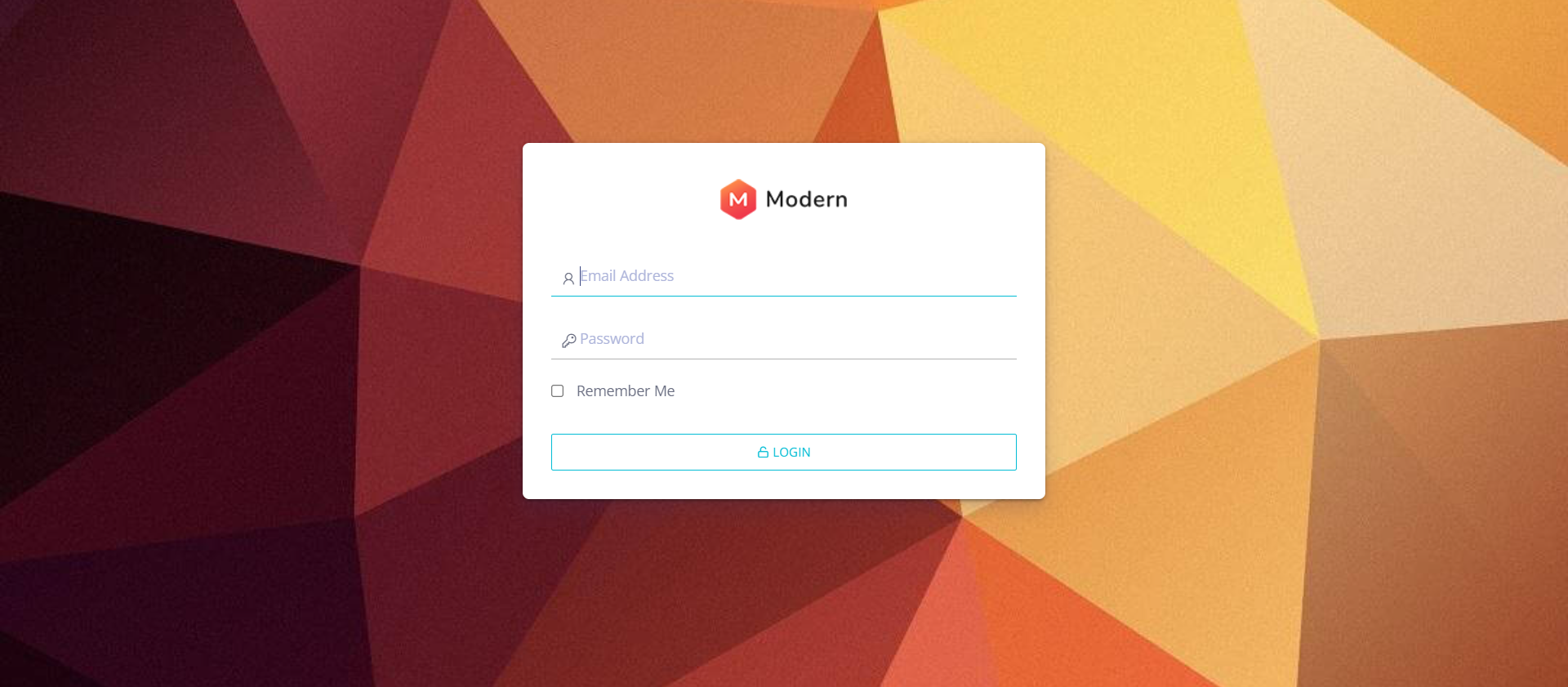
Go to https://nuyu.ph/login in your browser. You'll see the login form:
2 Enter Your Credentials
Enter your admin email address and password, then click the LOGIN button.
3 Dashboard
After logging in, you'll be redirected to the Admin Dashboard at https://nuyu.ph/dashboard. From here, use the left sidebar menu to navigate to different sections.
2. Admin Sidebar Navigation
The admin sidebar (on the left side of every admin page) contains the following menu items:
Sidebar menu items:
| Menu Item | Description |
|---|---|
| 📊 Dashboard | Admin home overview |
| 🖼️ Media | Image gallery management |
| 📖 Bookings | Customer booking management |
| 🧖 Booking Services | Service booking categories |
| 📝 Blog Post | Blog content management |
| 🏷️ Pricing ▾ | ⭐ Pricing management (this guide) |
| → Pricing Categories | Manage service categories |
| → Pricing Packages | Manage individual services & pricing |
| 👤 User | User/account management |
| 🗑️ Recycle | Deleted items / recycle bin |
3. Overview - How Pricing Works
The Nuyu pricing system has a 3-level hierarchy:
- Pricing Categories — Group services (e.g., Massages, Facials, Lashes)
- Pricing Packages — Individual services within a category (e.g., "Hot Stone Massage")
- Package Options — Variants/pricing tiers within a package (e.g., 60min = ₱500, 90min = ₱700)
4. Managing Pricing Categories
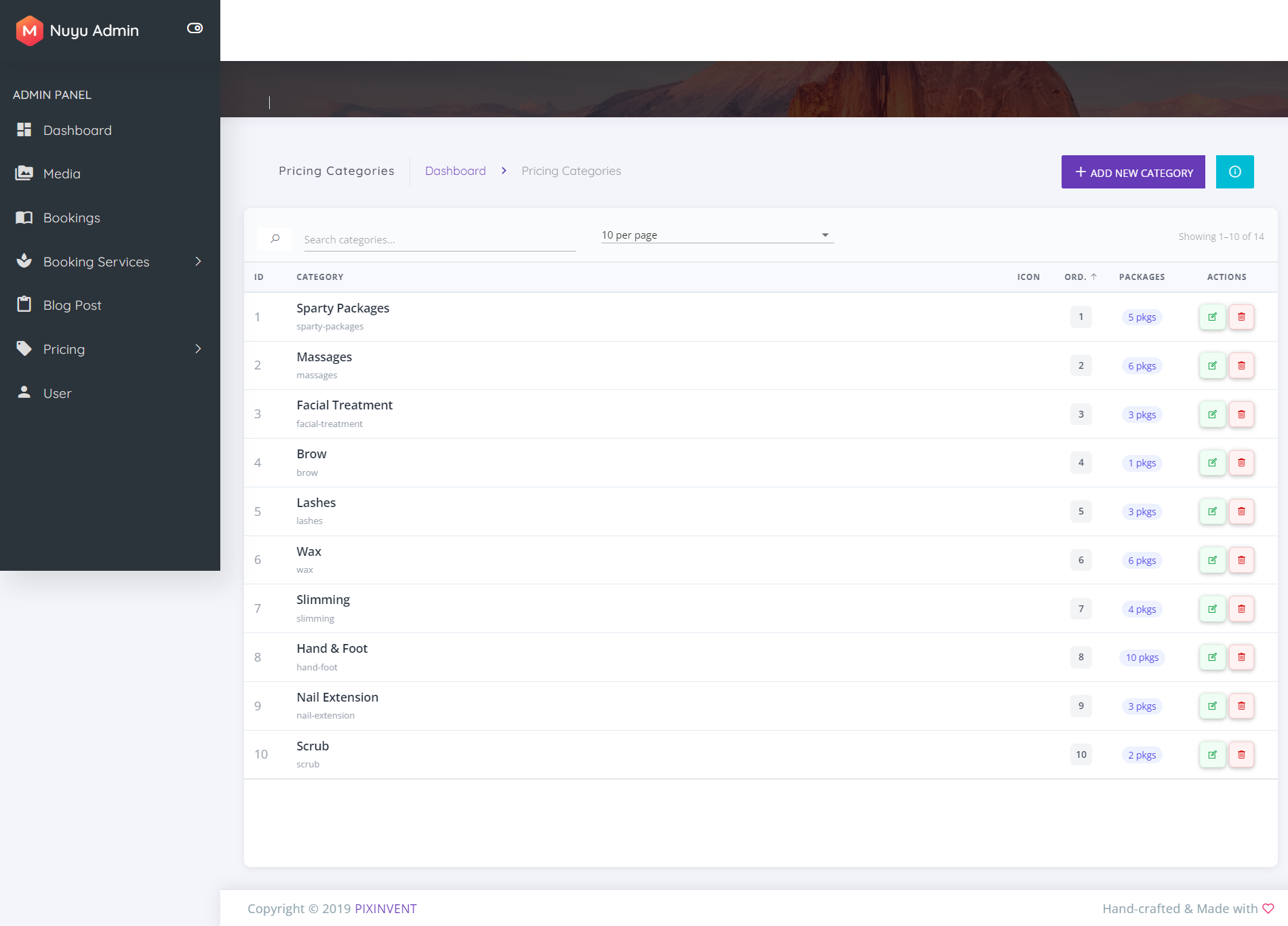
1 Access the Pricing Categories Page
Navigate to Admin Panel → Pricing → Pricing Categories or go directly to:
https://nuyu.ph/admin/pricing-categories
From this page you can:
- Search categories by name using the search bar
- Sort by Name or Display Order (click column headers)
- View packages in a category (click "X pkgs" link)
- Edit a category (green pencil icon)
- Delete a category (red trash icon)
- Add New Category (blue button at top-right)
2 Edit a Category
Click the Edit icon (green pencil) next to any category. You'll see:
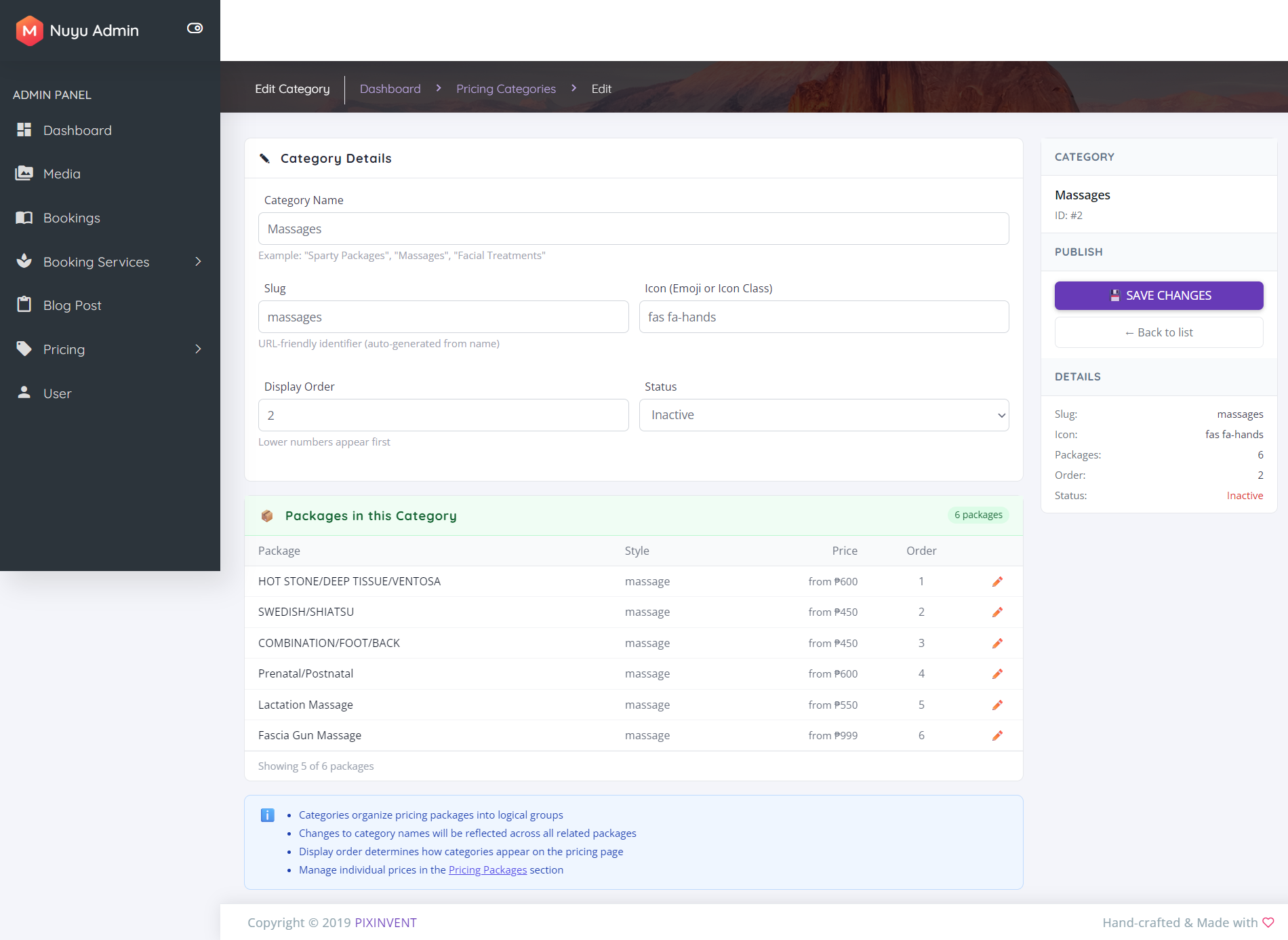
Fields explained:
- Category Name — Display name shown on the website (e.g., "Massages")
- Slug — URL-friendly version, auto-generated from the name (e.g., "massages")
- Icon — Material/Laravel icon class for the category (e.g.,
la-spa) - Display Order — Number controlling sort order on the frontend (lower = first)
- Is Active — Toggle to show/hide this category on the public website
3 Create a New Category
Click "ADD NEW CATEGORY" button at the top of the categories page:
5. Managing Pricing Packages
1 Access the Pricing Packages Page
Navigate to Admin Panel → Pricing → Pricing Packages or go to:
https://nuyu.ph/admin/pricing-packages
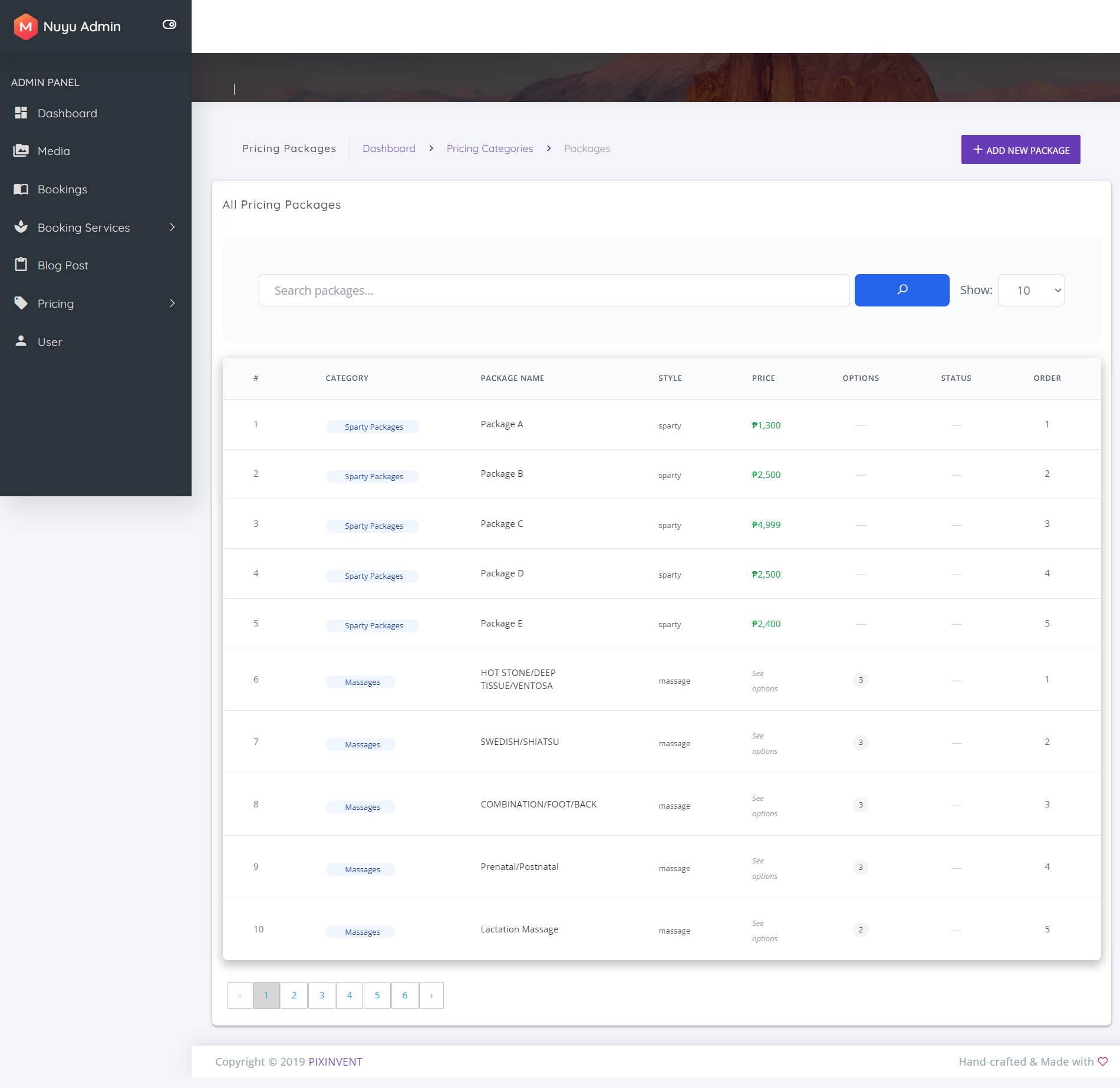
Table columns explained:
- # — Package ID
- Category — Which category this package belongs to
- Package Name — Service name shown to customers
- Style — Display style tag (e.g., "sparty", "massage")
- Price — Fixed price (₱X,XXX) or "See options" if it has variants
- Options — Number of pricing variants/tiers
- Status — Active/inactive status
- Order — Display order within the category
- Actions — View, Edit, Delete buttons
/admin/pricing-packages?category=2 (replace 2 with the category ID from the Categories page).
2 Edit a Package (Flat Price)
For packages with a single fixed price (e.g., "Package A - ₱1,300"):
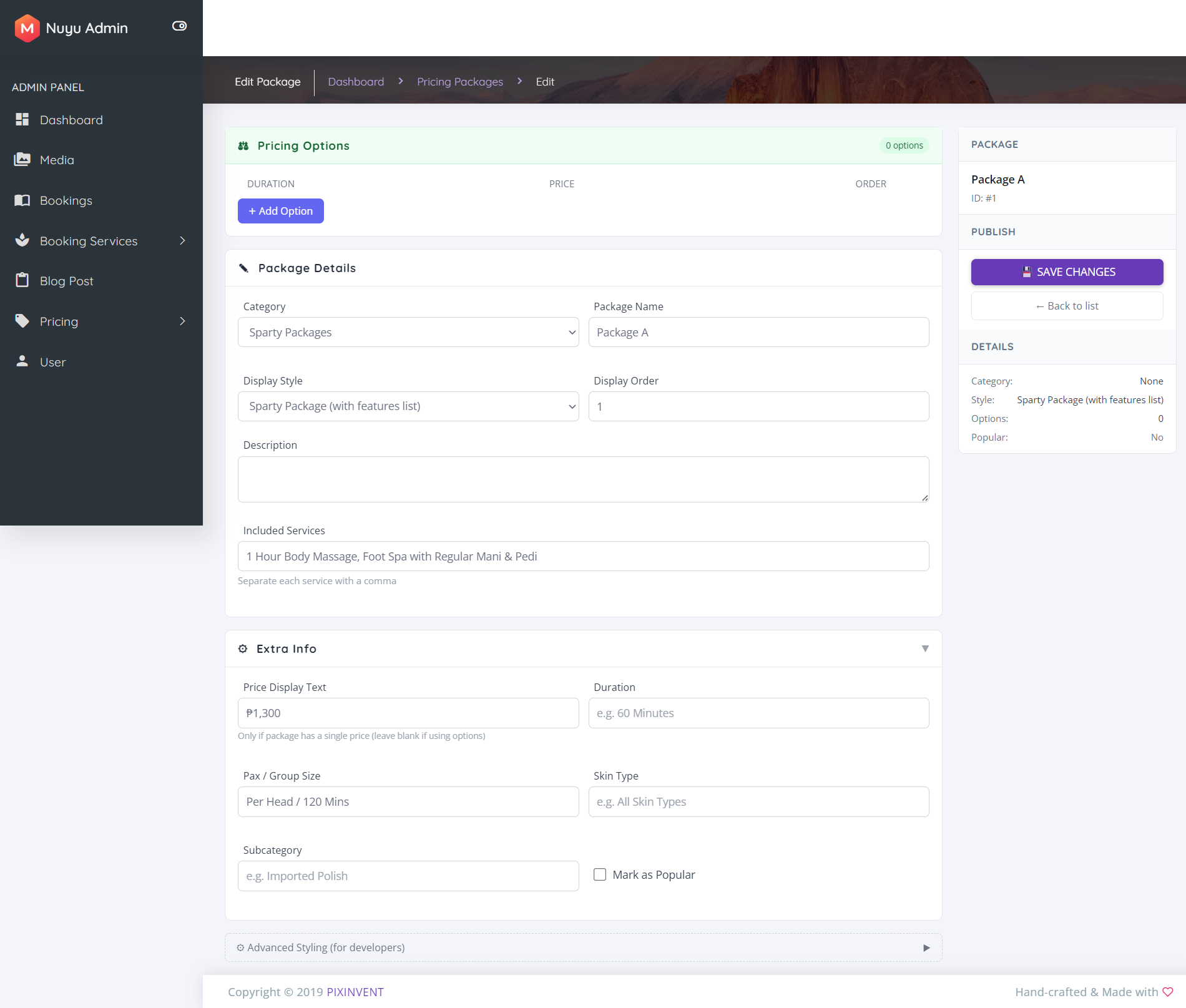
Key fields:
- Package Name — Name displayed to customers
- Category — Dropdown to assign to a category
- Price (₱) — Fixed price amount
- Style — Tag/label for categorization (e.g., "sparty", "massage")
- Description — Service details shown to customers
- Display Order — Sort order within its category
- Is Active — Toggle visibility on the public website
3 Edit a Package (With Options/Variants)
For packages with multiple pricing tiers (e.g., different durations):
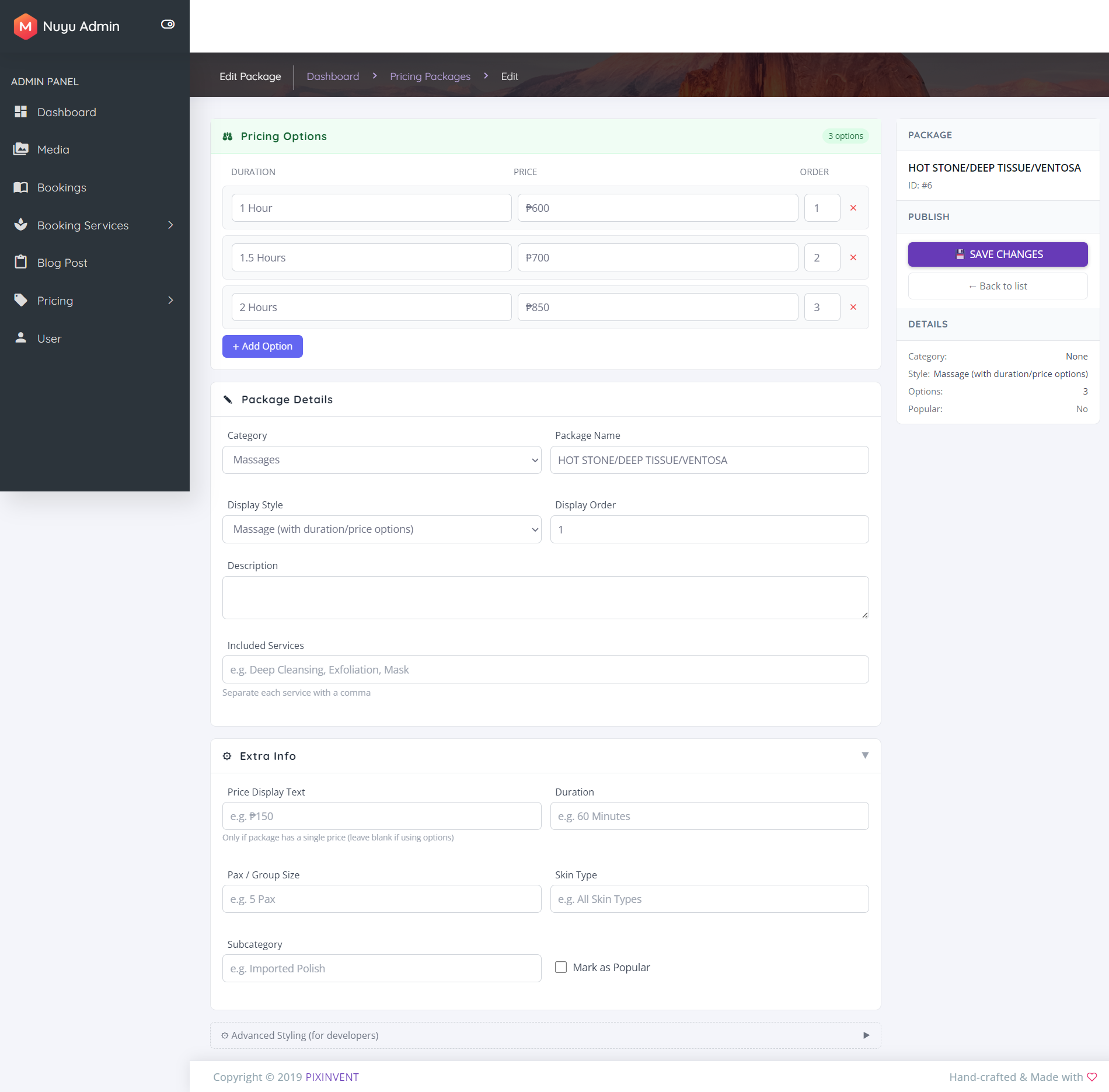
Package Options section: Each option represents a variant (e.g., duration) with its own price:
- Option Name — Variant label (e.g., "60 minutes", "90 minutes")
- Price (₱) — Price for this specific variant
- Duration — Time in minutes (optional)
- Add Option — Click to add a new variant row
- Remove — Click the X to delete a variant
4 Create a New Package
Click "ADD NEW PACKAGE" from the packages listing page:
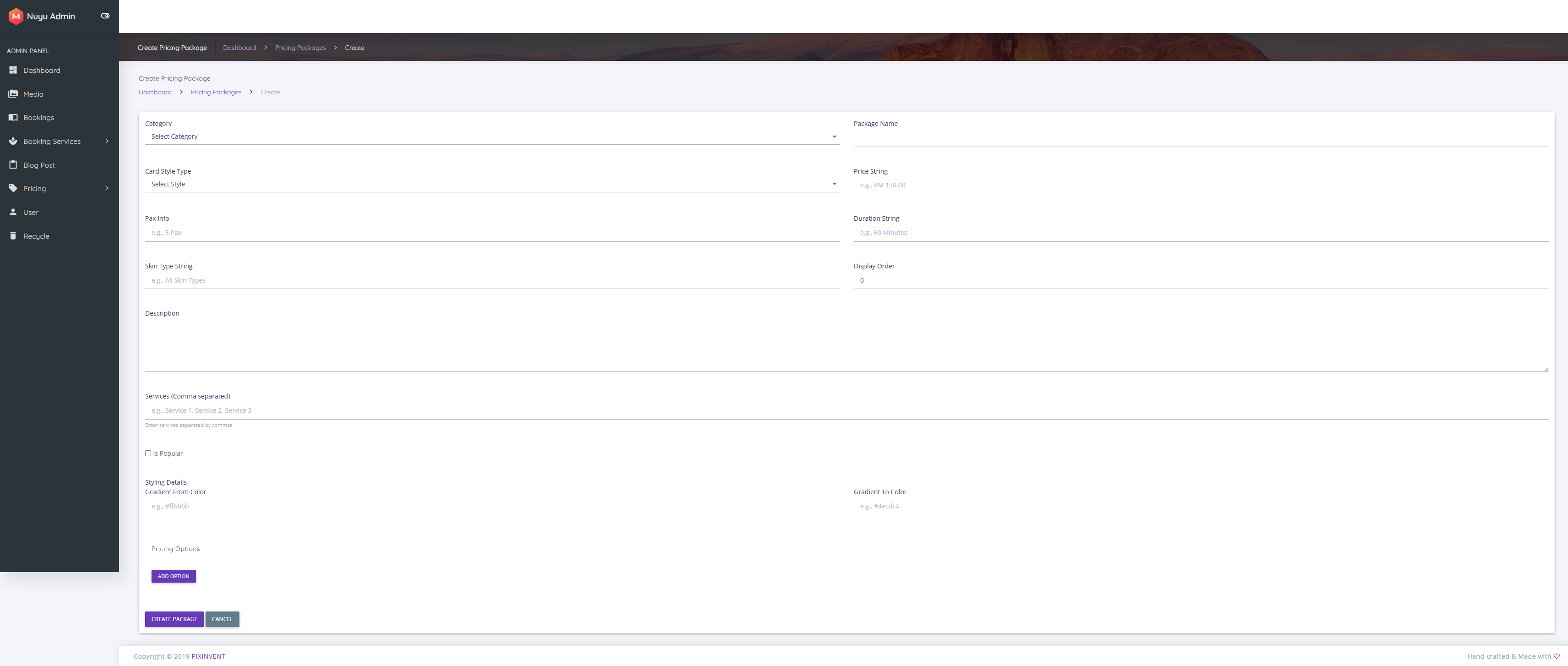
6. Package Options (Variants/Pricing Tiers)
- Massage: 60min = ₱500, 90min = ₱700, 120min = ₱900
- Lash extensions: Classic = ₱1,500, Volume = ₱2,000, Mega = ₱2,500
When NOT to use options: If a service has a single fixed price, just set the price directly on the package and leave the options section empty.
7. How It Appears on the Website
The pricing categories and packages are displayed on the homepage in the "Our Services & Pricing" section at https://nuyu.ph/:

Categories are displayed as sections with their icons, and packages are shown as cards within each section. Packages with options show a dropdown or list of variants with individual prices.
8. Tips & Best Practices
facial-treatment
- Categories:
https://nuyu.ph/admin/pricing-categories - Packages:
https://nuyu.ph/admin/pricing-packages - Packages by category:
https://nuyu.ph/admin/pricing-packages?category=ID - Public pricing section:
https://nuyu.ph/(homepage)